

The fastest reliable way to animate a group photo is a mobile-first AI photo-to-video tool with ready-made templates built for multiple faces at once, not a bespoke prompt you write from scratch. Upload the photo, choose a group-friendly preset and render. Most tools return a short MP4 loop, and six seconds is the sweet spot for social sharing.
The workflow is genuinely just three moves:
- Upload your group photo.
- Pick a template built for groups (subtle motion, not a dramatic single-face effect).
- Render and download your clip.
- Typical render time: between 45 and 120 seconds, depending on resolution and subject count.
- Typical output: a short MP4 loop suitable for social sharing, often around six seconds long.
Squish is built for exactly this. Free-to-start, mobile-first, and stocked with templates designed for more than one face in the frame.
Key Takeaways
The fastest reliable way to animate a group photo combines a mobile-first AI tool, a group-friendly template, and a short MP4 export built for looping.
| Point | Details |
|---|---|
| Template beats prompt | Subtle, collective presets work better on groups than dramatic single-face effects. |
| Prepare the photo first | Use a high-resolution original with visible faces and even lighting to avoid failed renders. |
| Match format to platform | MP4 suits audio and quality; GIF suits silent loops and messaging apps. |
| Get consent before sharing | Ask everyone in frame, especially where audio or commercial use is involved. |
| Squish fits occasional and regular creators | Free-to-start credits with mobile-first, group-specific templates and consent-first controls. |
Table of Contents
- How to animate a group photo in five steps
- Which animation effects suit group photos best?
- How do you prepare a group photo for the best result?
- What export format and length work best for sharing?
- What does it typically cost to animate a group photo?
- What about privacy and consent when animating a group photo?
- Why does my group photo animation look off, and how do I fix it?
- Why Squish is worth trying first for group animations
- Try Squish free and animate your group photo today
- Frequently asked questions
- Sources
How to animate a group photo in five steps
The best sequence for animating a group photo is upload, select a template, set face anchors if the tool offers them, choose your quality and length, then render. Skipping the anchor step is the single biggest reason multi-person animations come out looking odd.
- Upload the photo (5 to 20 seconds). Use the original file if you can. Screenshots and heavily compressed exports lose the detail an AI model needs to find faces cleanly.
- Select a template or effect (10 to 30 seconds). Look for anything labelled “group,” “subtle,” or “ambient.” These are built to move several faces at once without warping anyone at the edges of the frame.
- Set anchor points or face markers, if your tool supports them. This step tells the model exactly where each face sits, which matters far more in a group of six than a solo portrait.
- Choose quality and clip length. Fast modes tend to run at 720p; premium modes usually push to 1080p and handle finer detail, such as candle flicker or hair movement, more convincingly.
- Render and download. Expect roughly 45 to 120 seconds for a typical clip, depending on resolution and the number of people in the shot, based on how tools like EditThisPic’s group photo animator time their renders.
Choose MP4 when you want audio or the smoothest possible loop. Choose GIF when file size matters more than quality, or when you’re sharing somewhere that only accepts GIFs, such as certain messaging apps.
Pro Tip: If a six-person render looks glitchy around the edges, crop to two or three people and test again. A cleaner result on a smaller group tells you whether the problem is the photo or the template, before you spend credits re-rendering the whole group.
Which animation effects suit group photos best?
Subtle, collective motion reads as natural on a group photo; dramatic single-face effects almost never do. The moment one person’s expression swings wildly while everyone beside them stays static, the whole clip looks broken.
- Soft breathing or smiling — works for professional headshots, team photos, and formal group portraits where you want life without drama.
- Ambient breeze — hair and clothing move slightly, giving outdoor group shots a natural, unposed feel.
- Parallax push-in — the background shifts subtly behind the group, adding depth to a flat photo without touching any faces.
- Candle flicker — built for birthday and celebration shots, and it tends to look best in higher-quality render modes where fine detail holds up, according to EditThisPic’s birthday template guidance.
- Synchronised clap or cheer — a good fit for celebration and reunion photos where everyone in frame is already reacting together.
- Slow push-in with background parallax — flattering for any group shot where you want a cinematic feel without individual faces doing anything dramatic.
Match the effect to the mood of the photo, not the flashiest option on the list.
How do you prepare a group photo for the best result?
Getting a clean render starts before you ever open an animation tool. A few minutes of preparation will save you far more time than re-rendering a failed attempt.
- Use the highest-resolution original you have; avoid screenshots or re-saved, heavily compressed copies.
- Make sure every face is visible and unobstructed, without motion blur or heavy shadow.
- Aim for two to six people in frame; smaller groups animate more reliably than crowds.
- Shoot or select photos with even, front-facing lighting.
- Crop to a standard aspect ratio: 16:9 for landscape, 9:16 if you’re heading straight to Stories or Reels.
- If the group is large or the photo is busy, animate a tighter crop of two or three people rather than the whole scene.
Pro Tip: A quick brightness and contrast pass before uploading often improves face detection more than any setting inside the animation tool itself. Straighten the horizon too. A tilted photo throws off anchor placement.
What export format and length work best for sharing?
MP4 is the better default when you want audio or the sharpest quality; GIF wins for silent loops and quick sends through messaging apps that don’t handle video well. A 6-second clip is long enough to register as an animation and short enough to loop cleanly without dragging.
- MP4 — best for Instagram, TikTok, and anywhere audio adds to the moment.
- GIF — best for group chats, forums, and anywhere file size trumps fidelity.
- Square (1:1) for Instagram feed posts; 9:16 for Stories, Reels, and TikTok.
- If your rendered clip doesn’t loop seamlessly on its own, a free tool like Clideo’s online looper can smooth the transition or export it as an infinite GIF.
- Pair the clip with a caption naming the occasion, not just the people. It reads better and performs better.
What does it typically cost to animate a group photo?
Most tools in this space follow the same shape: free-to-start with limited renders, then credit packs or a subscription once you want more. Occasional users are almost always better off buying a small credit pack; anyone animating photos weekly should look at a subscription instead.
- Free tier — usually capped at a handful of renders, often at reduced resolution and with a watermark.
- Credit packs — pay per animation, useful if you’ve got one big group shot to bring to life for an event or a one-off post.
- Subscriptions — better value for creators, influencers, or anyone animating photos regularly.
- Watch for resolution caps on fast or free modes (usually 720p) versus higher-detail pro modes (often 1080p).
- Fast renders typically cost fewer credits than pro-quality renders. Budget accordingly if detail matters, such as with candle flicker or fine hair movement.
What about privacy and consent when animating a group photo?
A group photo involves several people’s likenesses at once, which raises the consent stakes higher than a solo selfie. Get agreement before you post anything publicly, especially if the animation includes audio, singing, or anything that puts words in someone’s mouth.
- Ask everyone in frame before sharing the animated version publicly, not just before taking the original photo.
- Get explicit opt-in if the effect adds audio, singing, or spoken prompts.
- Check whether anyone in the photo is a minor, and apply extra caution around sharing and content type if so.
- Keep a record of agreement if the animation is for commercial or marketing use.
- Avoid captioning posts with identifying details such as full names, locations, or workplaces.
- Squish takes a consent-first approach across its platform, including clear controls around NSFW and adult-themed content, so creators stay in charge of what gets made and who sees it.
- If consent is missing or unclear, blur or crop out the faces you don’t have permission to share.
Why does my group photo animation look off, and how do I fix it?
Most failed renders trace back to one of four causes: face resolution, lighting, template intensity, or file compression. Working through them in that order usually finds the fault fast.
- Blurry or warped faces → re-upload a higher-resolution original, or crop to a single subject and test again.
- Strange facial artefacts → switch to a more subtle, group-specific template rather than a dramatic single-face effect.
- Long render times → drop to fast mode at 720p rather than waiting on a full pro-quality render.
- Uneven results across the group → check that anchor points are set correctly and that faces aren’t obscured by hats, sunglasses, or shadow.
If none of that fixes it, fall back to animating one or two people from the same photo. It’s a faster diagnostic than repeatedly re-rendering the whole group.
Why Squish is worth trying first for group animations
Squish is built free-to-start, with a mobile-first workflow and templates designed specifically for more than one face in frame, which is exactly the gap most single-subject tools leave open. You get:
-
A credit model that lets you try before you commit to a subscription.
-
Ready-made templates for group motion (breathing, ambient movement, synchronised cheer) without writing a single prompt.
-
A beginner-friendly guide covering setup and effect choice.
-
A consent-first stance that extends to NSFW and adult-themed content, with controls that keep that choice in the creator’s hands.
-
A complete guide to animating still photos for anyone who wants to go deeper once the basics click.
Author’s note: start with the preset, not the prompt
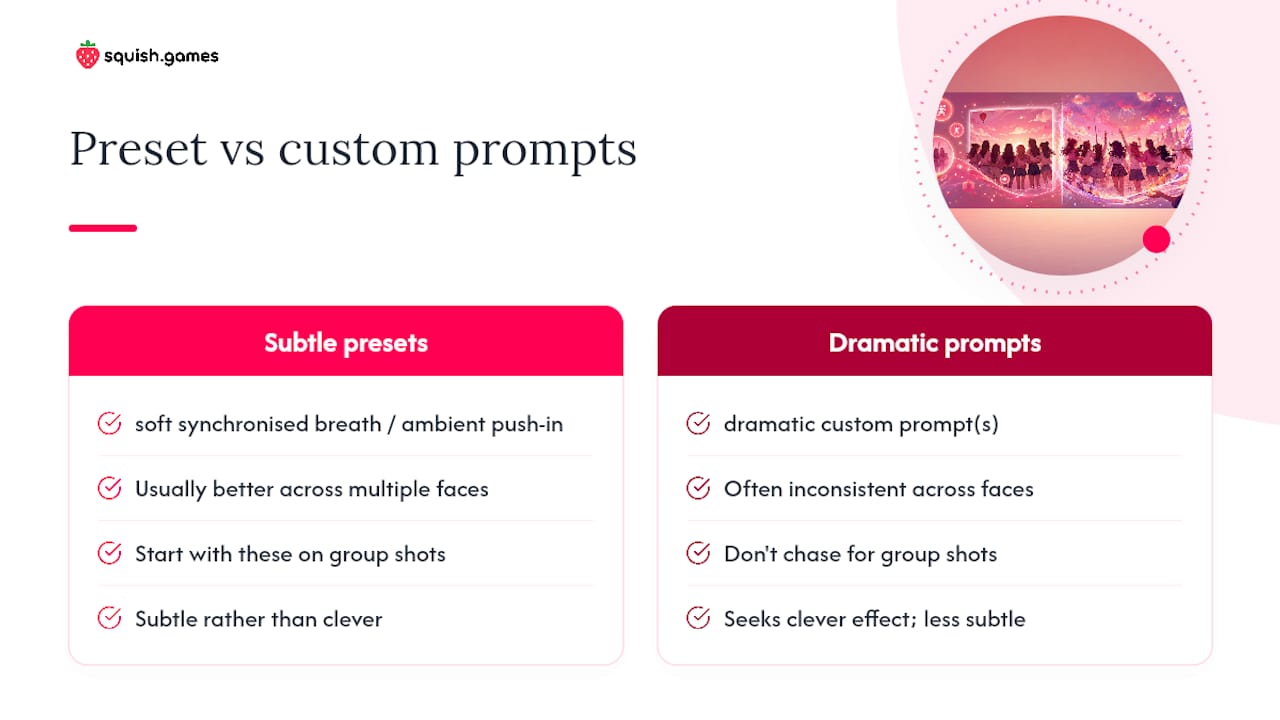
If there’s one thing worth taking from this: don’t chase a dramatic custom prompt for a group shot. Try “soft synchronised breath” or “ambient push-in” first. Subtle almost always beats clever on more than one face.
Try Squish free and animate your group photo today
Squish turns a static group photo into a shareable clip in minutes, with no editing skills and no software to learn, which is the real gap most photo-editing apps leave unfilled for anyone who just wants a quick, fun result.
You start free, work through mobile-first templates built for multiple faces, and top up with credits only when you want higher resolution or a pro-quality render. Free renders typically cap out at 720p with a watermark, but premium modes noticeably improve how group shots handle detail like candle flicker or synchronised movement. If you’ve got a party, reunion, or team photo sitting in your camera roll, start your first animation and see what a six-second loop does for it.
Frequently asked questions
Can I animate a group photo for free?
Most tools, including Squish, offer a free tier with limited renders, often at reduced resolution and with a watermark. Buying credits or subscribing removes those limits and unlocks higher-quality output.
How long should an animated group photo be?
Four to eight seconds works best for social sharing, with six seconds being the most common default across tools. Longer clips suit storytelling but rarely loop as cleanly.
Why do faces at the edge of a group photo animate strangely?
Faces near the frame’s edge often get less detail from the source image, which confuses face detection. Cropping tighter around the group, or setting manual anchor points where the tool allows, usually fixes it.
Is it safe to animate a photo that includes other people?
Ask for consent before sharing publicly, particularly if the animation adds audio or spoken prompts. Squish’s consent-first controls apply across its content types, including NSFW, so creators decide what’s appropriate before anything goes public.
Sources
- Loop Video — Repeat Video with Online Looper — Clideo
Leave a Reply